 If you are taking your first steps in astrophotography, Siril is an excellent choice: it is free, powerful, and widely used.
The problem is that the initial installation is not straightforward, especially if you are not comfortable with Windows.
This guide shows you step by step how to install Siril, prepare the essential tools, and, above all, organize your folders correctly to avoid errors later on.
⚠️ This process can take 30 to 60 minutes, mainly due to the download of astronomical catalogs. You only have to do it once.
1. Create the folder structure (essential step)
Before installing any program, let's create a simple and clear structure on the disk.
- Open File Explorer
- Go to the C: drive (or another drive you want to use)
- At the root, create a new folder called Astro and create the following structure:
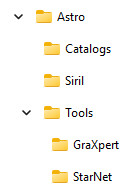
📌 Why this is important:
- It avoids confusing Windows paths
- Makes it easier to find files later
- Makes backups and reinstallations much simpler
- Helps you follow tutorials without getting lost
2. Install Siril
🔗 Download: https://siril.org/download/
In Windows, you have two options: Installer and Portable
Installer
- Download the installer
- Run the file
- When prompted for the installation location, change the path suggested by Windows to C:\Astro\Siril
⚠️ Do not accept the automatic folder (Program Files); keeping Siril out of these folders avoids permission issues.
Complete the installation as usual.
Portable
- Unzip to C:\Astro\Siril
3. First run and language
Open Siril using the file:
C:\Astro\Siril\bin\siril.exe
A short introduction appears on first run.
Change the language to English (recommended), because most online tutorials use Siril in English.
- Hamburger menu (☰)
- Preferences - User Interface - Language → English
- Close and reopen Siril
4. Install StarNet++ (star removal)
StarNet++ allows you to separate stars and nebulae, and is widely used in modern processing.
🔗 Download: https://www.starnetastro.com/download/
- Choose Command Line Tool
- Unzip the contents to:
C:\Astro\Tools\StarNet
No installation is required. Just unzip.
5. Install GraXpert (gradient removal)
GraXpert is an external tool used to correct light gradients and light pollution.
🔗 Download: https://graxpert.com/
- Run the installer
- When prompted for the installation location, change it to:
C:\Astro\Tools\GraXpert
Complete the installation.
6. Configure Siril to use external tools
Open Siril and go to the hamburger menu (☰).
Scripts
- Go to Scripts
- Check all available scripts
Miscellaneous
Here you will tell Siril where the external programs are located:
- StarNet++ executable
→selects C:\Astro\Tools\StarNet\starnet++.exe - GraXpert executable
→select C:\Astro\Tools\GraXpert\GraXpert.exe
7. Install astronomical catalogs (most time-consuming step)
This step is essential for:
- Plate solving
- Color calibration (SPCC)
- Modern processing workflows
In Siril:
- Scripts - Python Scripts - Core
- Run Siril_Catalog_Installer.py
Follow the steps below:
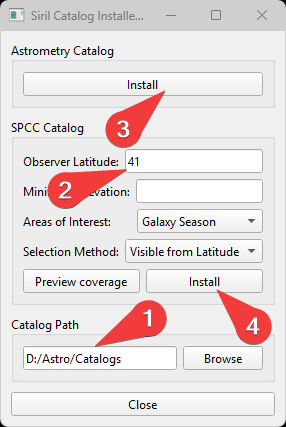 Step 1 – Destination folder - Choose C:\Astro\Catalogs
Step 2 – Latitude - Indicate your approximate latitude (it does not need to be exact).
Step 3 – Astrometry Catalog
- Long download
- Do not close Siril
- Do not interrupt the process
Step 4 – SPCC Catalog
- Very slow, it is normal for it to appear to be stuck
⏳ Total time for this step: 20–40 minutes, depending on your internet connection.
8. What comes next
After these steps, Siril is correctly installed and ready to use. From here on, you are no longer configuring software — you are processing images.